How to Use Clients
Maintain client records for projects and invoicing — track contact details, billing status, and outstanding balances in one list.
Clients overview
Open Clients
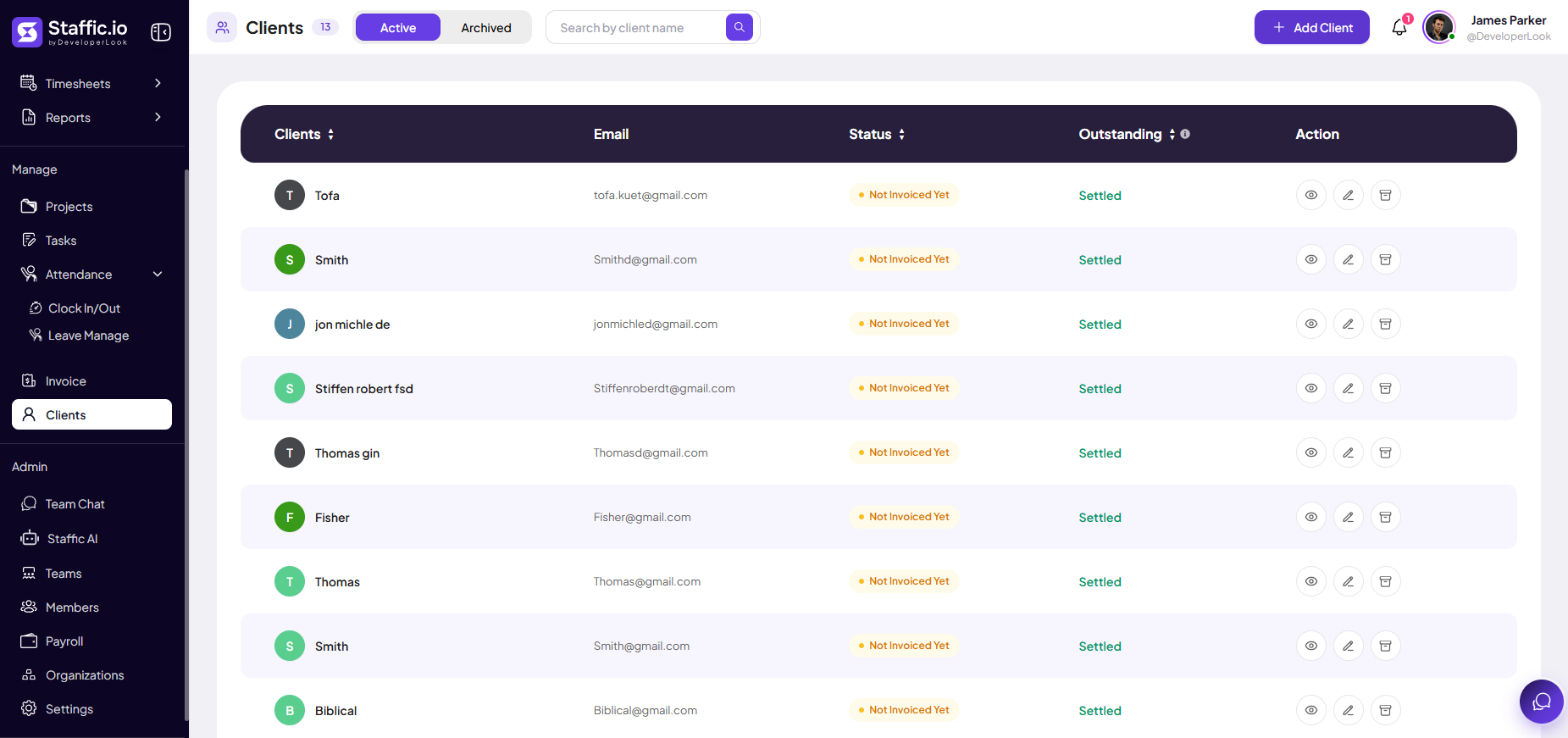
Go to Clients under Manage in the left sidebar. The badge shows how many clients you have (for example, 13). Switch between Active and Archived, search by name, and click + Add Client to create a record.
Read the client table
Each row is one client:
Clients
Avatar initial and full name — used when selecting a client on Projects and Invoices.
Email
Primary contact email for invoices and communication.
Status
Billing state such as Not Invoiced Yet — updates as you send invoices from Manage → Invoice.
Outstanding
Amount owed or Settled when nothing is due — hover the header info icon for definitions.
Action
View (eye), Edit (pencil), and Delete (trash) — prefer Archive via the Archived tab instead of delete when you need history.
Add a client
Client Information form
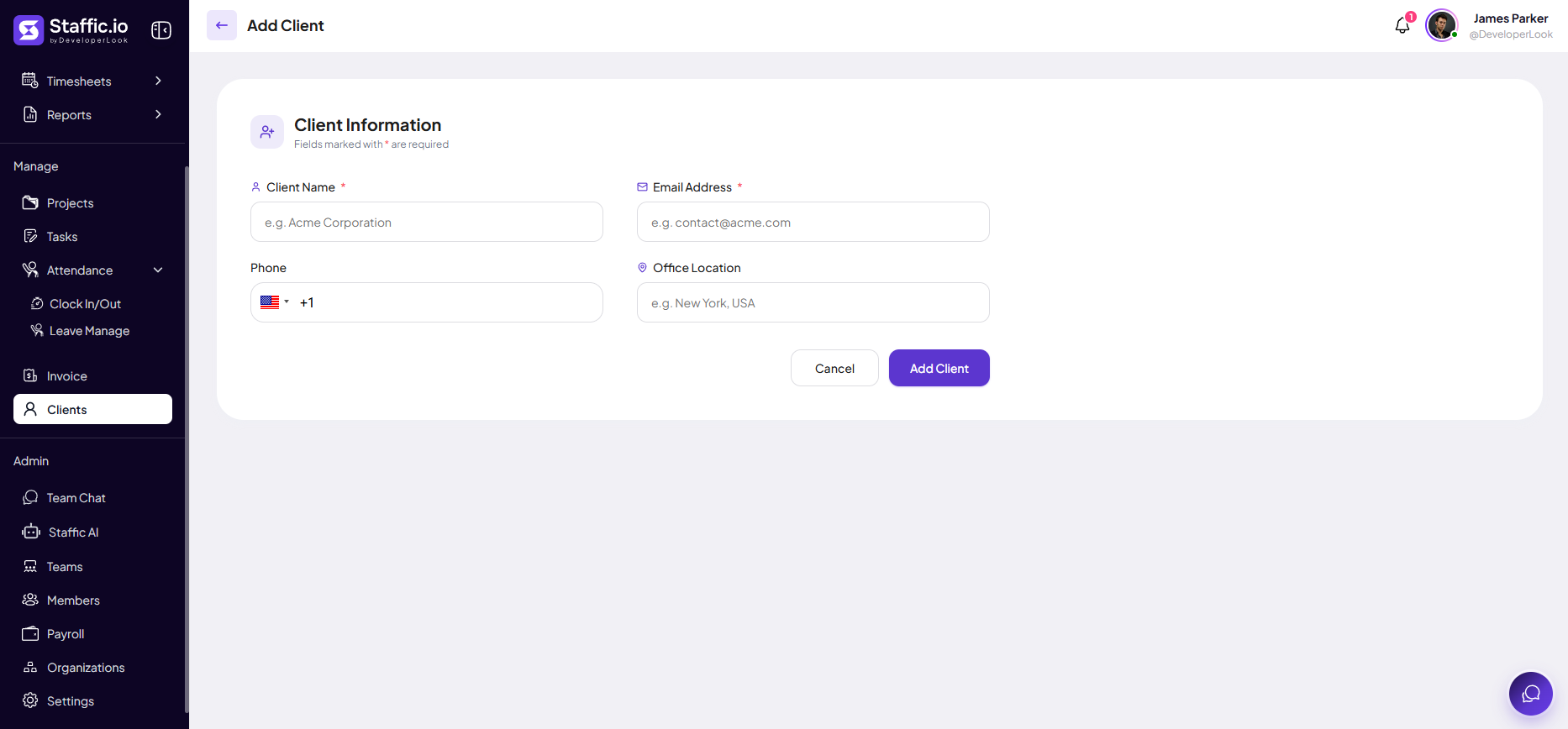
Click + Add Client. Required fields are marked with *. Click Add Client to save or Cancel to go back.
Client Name (required)
Legal or display name (for example, Acme Corporation) — appears on invoices and project records.
Email Address (required)
Used when sending invoices and for client-facing communication.
Phone
Optional — country code selector and number for your CRM records.
Office Location
Optional — city or address note for internal reference.
You can also add a client inline when creating an invoice — click + Add Client on the Create Invoice screen.
Use clients across Staffic
Projects
When creating a project, choose the client under Select Client so time and budgets roll up to the right account.
Invoices
Every invoice must have a Client — filter the invoice list by client name and watch Outstanding on this page for collections.
Archive inactive clients
Move finished relationships to Archived instead of deleting so past projects and invoices stay searchable.
Tips
- Create clients before projects and invoices so dropdowns are never empty.
- Use one record per legal entity — avoid duplicate names for the same customer.
- Check Outstanding weekly and follow up on clients who are not Settled.
- Restrict client management to finance and admin roles via Settings where needed.
Ready to get started?
Create your organization, invite your team, and start tracking in minutes.
Start Free Trial