How to Use Staffic AI
Ask questions about hours, clock-ins, app usage, and work summaries — powered by your organization’s tracking data, without building reports by hand.
Open Staffic AI
Go to Staffic AI
Click Staffic AI under Admin in the left sidebar. The page has a chat history panel on the left and the active conversation on the right.
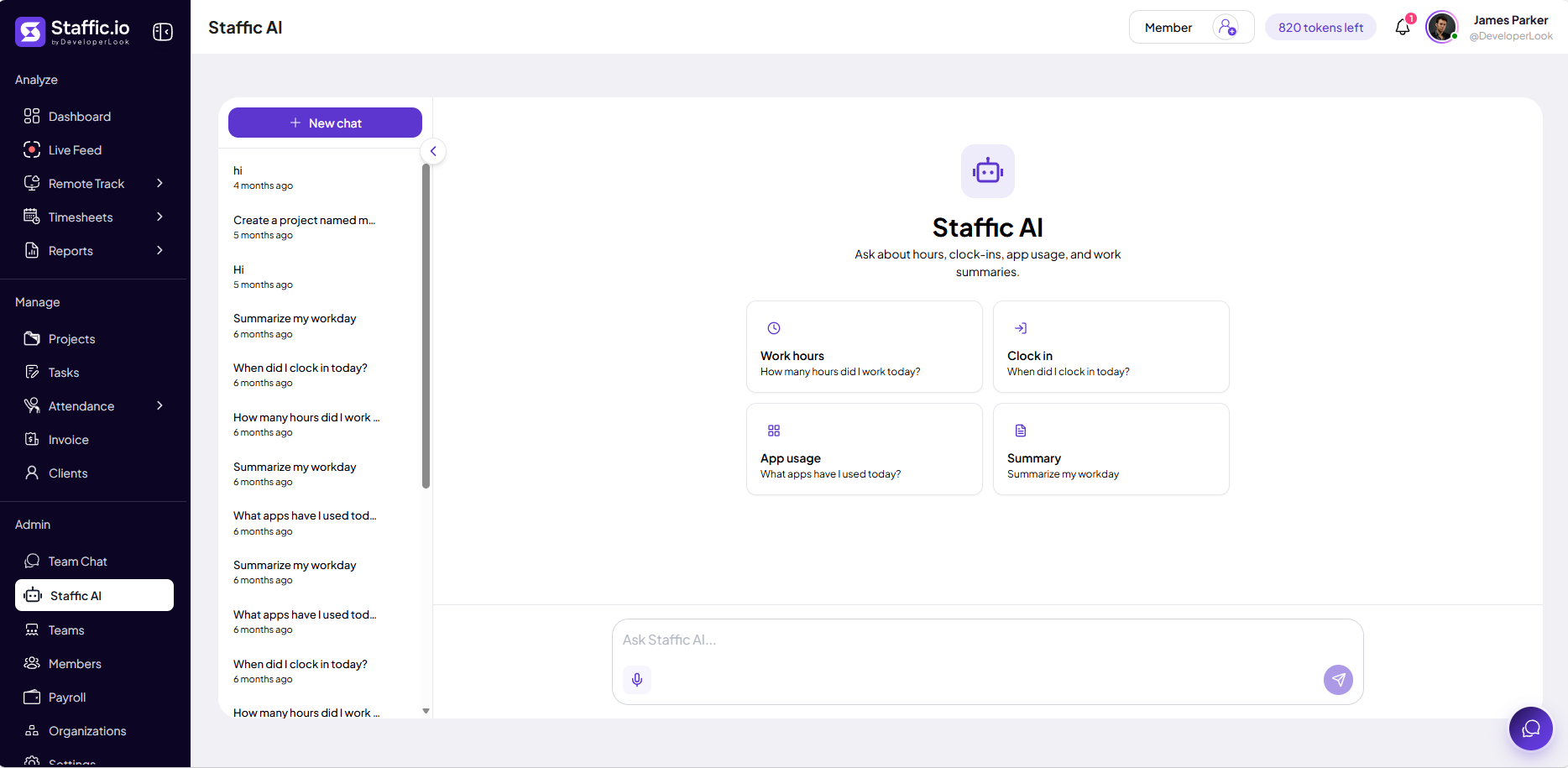
Header controls
Before you ask a question, check:
Member
Managers can switch which person’s data the AI uses — pick a member before asking about their day.
Tokens left
Shows remaining AI usage for your plan (for example, 820 tokens left) — contact your admin if you run out.
Staffic AI is included on eligible paid plans — see Pricing. Answers use data your organization has already collected (timesheets, attendance, apps, etc.).
Start a conversation
New chat and history
Click + New chat for a fresh thread. Past sessions appear in the left list with the first message and date (for example, Summarize my workday) — click any row to reopen it.
Suggestion cards
On a new chat, four starters help you begin:
Work hours
Example: How many hours did I work today?
Clock in
Example: When did I clock in today? (uses Attendance when enabled).
App usage
Example: What apps have I used today?
Summary
Example: Summarize my workday — hours, apps, sites, and tasks in one answer.
Ask a question
Type in Ask Staffic AI... at the bottom. Use the microphone for voice input where supported, then click the purple Send icon. Include dates, project names, or member names for clearer answers.
Use AI responsibly
Verify important decisions
Staffic AI summarizes patterns — it does not replace Timesheets, Reports, or Payroll for official numbers. Confirm payroll, billing, and disciplinary actions against source data.
What managers use it for
Quick checks before standups, drafting workday summaries for 1:1s, and spotting unusual app or hour patterns — then drill into Remote Track or Time & Activity for detail.
Tips
- Select the correct Member before asking about someone else’s day.
- Phrase questions with a date range: “last week”, “May 20”, or “this pay period”.
- Start from a suggestion card, then follow up in the same chat thread.
- Reconcile AI hour totals with Timesheets before paying or invoicing clients.
Ready to get started?
Create your organization, invite your team, and start tracking in minutes.
Start Free Trial