How to Use Teams
Organize members into teams for scoped access, team chat channels, and manager reporting — aligned to your org chart or project groups.
Teams overview
Open Teams
Go to Teams under Admin in the left sidebar. The grid shows every team with member and project counts. Use Search team by name to find one quickly.
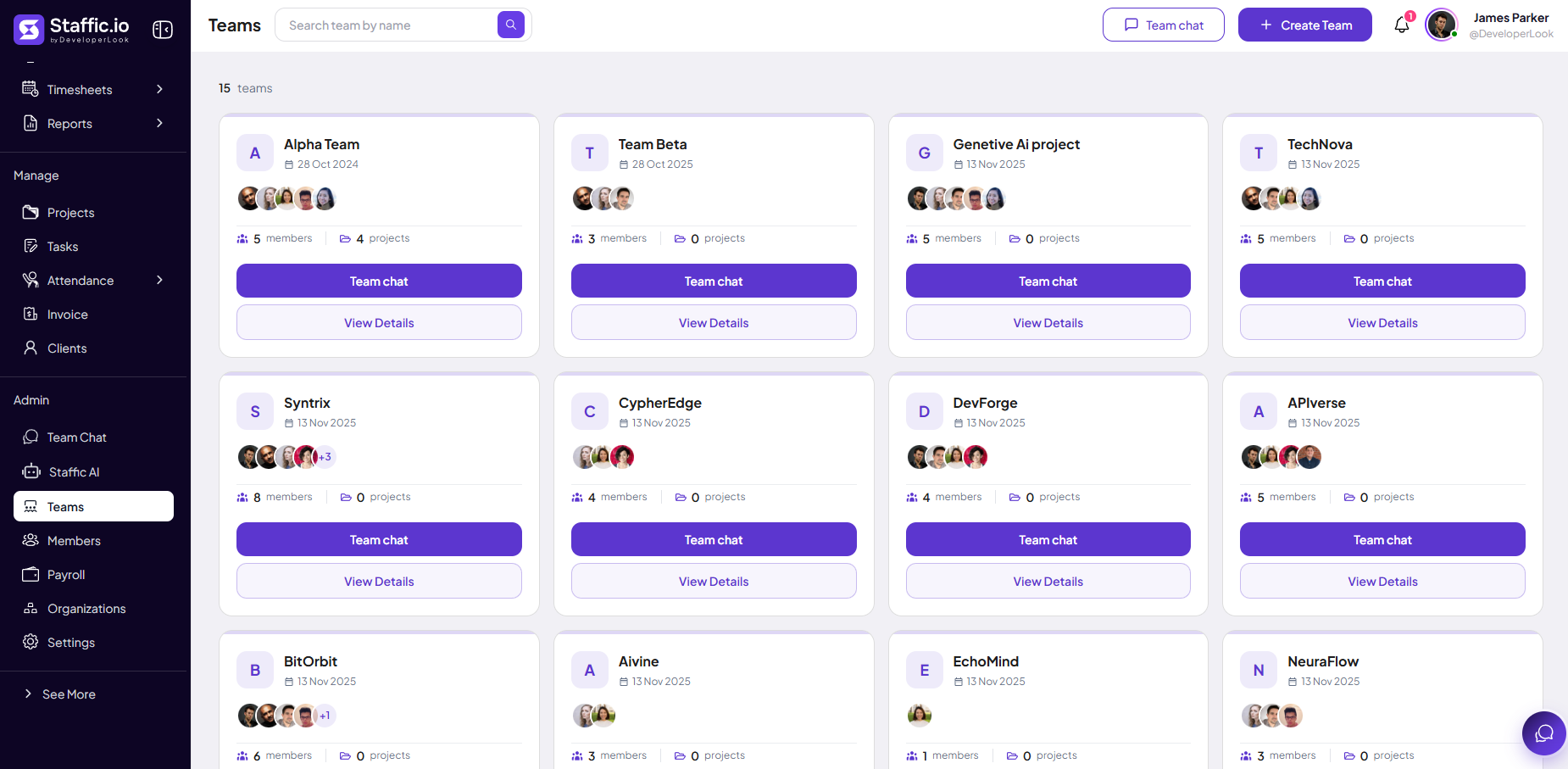
Team card
Each card includes:
Name & date
Team name and created date (for example, Alpha Team, 28 Oct 2024).
Member avatars
Who belongs to the team — overlap shows count when there are many.
Members & projects
Totals such as 5 members and 4 projects assigned to the team.
Team chat
Opens the team channel in Admin → Team Chat → Teams tab.
View Details
Edit members, projects, and team settings.
Header actions
Click + Create Team to add a team, or Team chat in the header to jump to team channels.
Create a team
Team Details form
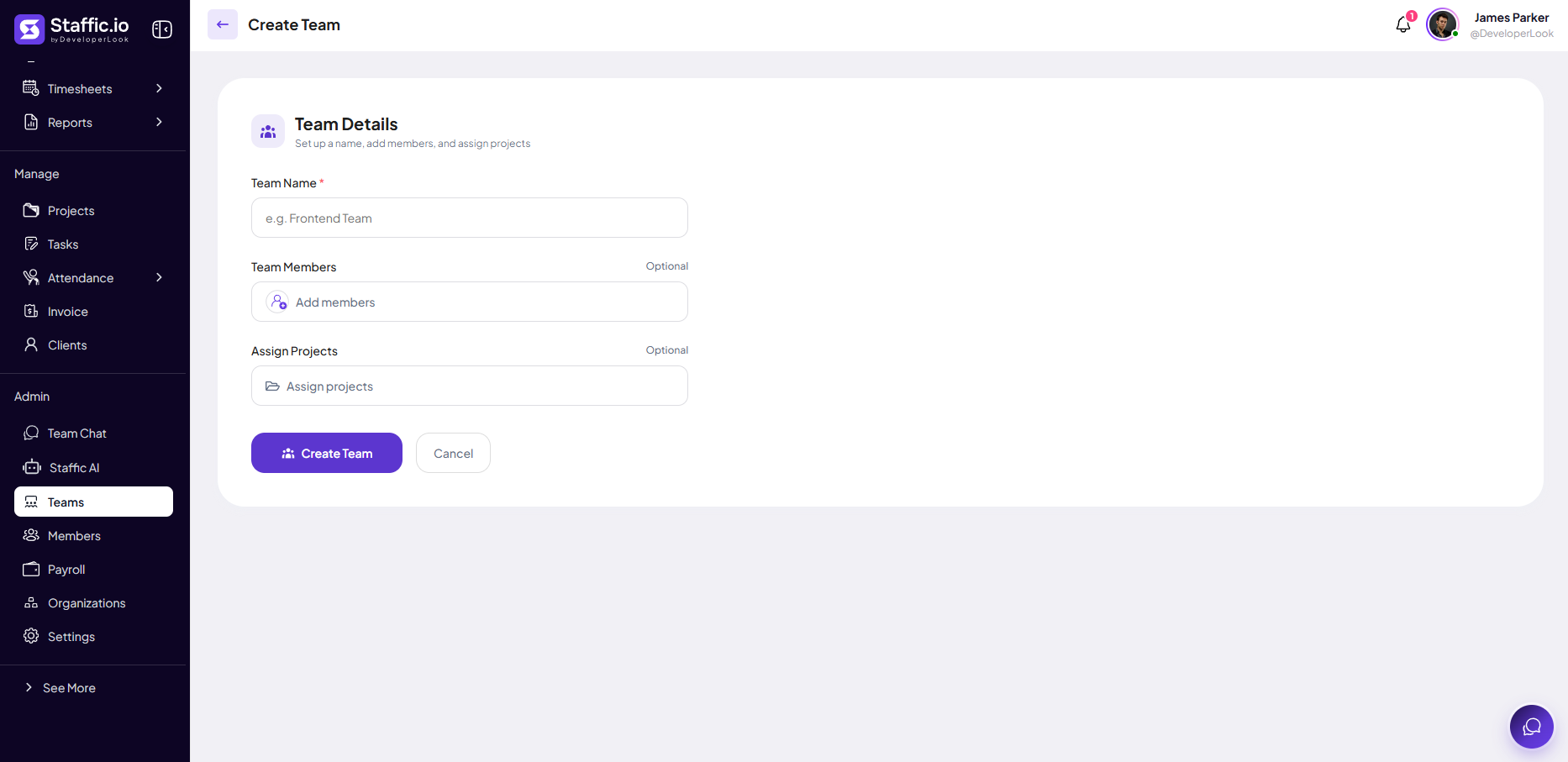
After + Create Team, fill Team Details — set a name, add members, and assign projects.
Team Name (required)
Display name (for example, Frontend Team) — appears on cards and in Team Chat as a team channel.
Team Members (optional)
Add people from your organization — they gain access scoped to this team where your plan allows.
Assign Projects (optional)
Link projects the team works on — helps reporting and Workload views.
Click Create Team to save or Cancel to return to the grid without changes.
How teams are used
Manager access
Team managers often see only their group’s data on Dashboard, Reports, and Timesheet Approval — configure roles under Members.
Team Chat
Each team gets a channel under Team Chat → Teams for announcements and coordination.
Keep teams current
Update membership when people join, leave, or change departments. Mirror your real org chart where possible so approvals and reports stay accurate.
Tips
- Create teams before assigning team managers in Members.
- Use View Details to add projects when a team picks up new client work.
- Open Team chat from a card for quick coordination without searching channels.
- Review team membership quarterly — stale groups break report filters.
Ready to get started?
Create your organization, invite your team, and start tracking in minutes.
Start Free Trial